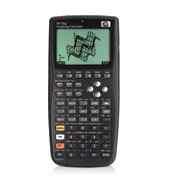
--- In 50g@yahoogroups.com, "kennethbasson" <kbasson@...> wrote:
>
> Is there a means of inputting equations without having to assign
units
> for the variables?  I have being trying to do this for some time
now.
> Some assistance in this regard will be really appreciated.
>
> I am also trying to save newly written equations on file.  Can
someone
> please point me in the right direction.
>
> Regards
> Kenneth M Basson
> South Africa
>
Greetings, Kenneth,

As I don't fully understand the problem, I offer the following
information that may help.  I only use RPN mode for the calculator
(as opposed to the default Algebraic mode) and the text below may
need to be modified slightly for algebraic mode.  To determine if
you're in algebraic mode, from the stack display, there will be the
words "ALG" in the upper right corner of the status area if the
default header size is used.  Or, if you press the MODE key, the top
item in the menu will display "Operating Mode" and next to it will
show either "Algebraic" or "RPN."  You can switch between the two by
pressing the "+/-" key (or selecting the Choose softkey--the F2 key).

There are a number of ways to enter equations in the HP50G.  To
create an equation using the stack editor, press the "'" key (has the
letter O on it).  This is the "tick" mark and indicates an algebraic
object.  Between the beginning and ending tick marks you can type
your equation.  For example, type 'y=2*sin(x)' and press enter.  Note
that this equation was entered without using units (units are created
with the right-shift (orange-shift) "-" key and appear as an
underscore after a number, e.g., 1_m for one meter).  With an
equation entered in the form 'y=f(x)', you can press the left-
shift "DEF" key (the 2 key) and the HP50G will create the equation
and store it in the assigned variable (in this case, y).  To create a
function, you can type 'y(x)=sin(x)' and press DEF and a function
will be created called y that takes one argument.  In RPN mode, you
would put this argument on the stack first (x) and then press the
softkey under the name 'y' (you can press VAR to get the variables in
the folder).  Or, you can just type the name "y" and it will be
executed.  You can algebraically evaluate the function by enclosing
it in tick marks "'" like 'y(1.414)' and pressing enter.  Pressing
EVAL or right-shift ->NUM will yield a numeric answer.  Note that
this procedure was one way of creating equations and functions and
storing them into a variable without having to use units.

To enter equations in a textbook-like mode, you can use the Equation
Writer application.  This is started by pressing EQW (right-
shift "O").  You can then type the equation just as it would appear
in a textbook.  Please refer to the calculator's documentation for
the operation of the equation writer.  When you are finished with the
EQW, press enter and the equation will be placed on the stack.  If
you have the equation in standard form "y=f(x)" you can press DEF as
above and the equation will get created.  As an alternative, you can
press the tick mark to create an unevaluated object that is the name
of the equation that you want to store (e.g., 'y') and press enter.
This will make sure that just the name "y" is put on the stack and
not executed if it already exists.  With the equation on level 2 and
the variable name on level 1, simply press the STO-> key (K) and the
object in level 2 will get stored to the variable name you defined on
level 1.  This STO-> operation works with any object/variable.  To
view your list of variables at any time, simply press the VAR key to
see what's listed in your folder.

Regarding units:  The built-in equation writer will not accept unit
entry for its input and will not edit equations with unit objects in
them.  However, the stack editor (called from typing a tick mark "'")
DOES accept units.  Here's a units example:

Find the force (in Newtons) of a 1 kg mass in free-fall (i.e., only
under the influence of gravity).  The units of interest are (1) force
in Newtons (_N), (2) mass in kilograms (_kg), and (3) the
acceleration due to gravity (_ga).  The equation is 'F=m*a' where
F=the desired force, m=the object's mass, and a=the acceleration.  If
we just want the answer and don't need to save it to a variable, we
can just type in the right-hand side of the equation to get the
answer on the stack (I'll use an algebraic object instead of RPN mode
here).  Type '1_kg*1_ga' and press enter.  Note that these units are
both lower-case (press left-shift and then the letter to get a lower-
case letter while in alpha entry mode).  Press left-shift CONVERT to
bring up the convert units menu and press the UBASE softkey (or
select it from the dialog box if you don't have softmenus enabled).
You will see that the result is 9.8067_(kg*m)/s^2.  That is, the
number preceding the units separator (the "_" character) is the
numeric value of the result and the right-hand side is the unit.
From the equation, we see that we multiplied a kilogram (kg) by an
acceleration (meters per second squared) and this appears to be
correct.  We expect our result to be in Newtons, which is a handy way
to remember (kg*m)/s^2.  From the stack, type 1_N and press enter.
Note that the _N is upper-case, since the unit was derived from a
proper name).  From the convert menu, press the key (or select)
CONVERT.  This will convert the level 2 unit to the level 1 unit,
providing the units match.  In this case, the numeric portion doesn't
change as the base SI units are exactly the same as the definition of
the Newton, so the display shows 9.8067_N.

The Hewlett-Packard website has a number of PDF documents available
that describe various aspects of computing with the HP50G
calculator.  You can pick and choose to your liking to get familiar
with other operations of the machine.  The URL is:
http://h41111.www4.hp.com/calculators/aa/en/graphing/50g/index.html

The right-hand side of the display has a section labeled "Training
modules" and you can download from there.

If you have a specific example that you would like some help on, feel
free to ask.

Kind regards,
Scott