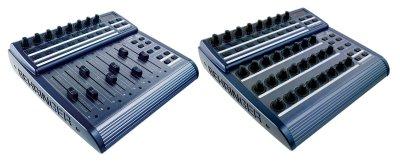
Hi there,

I had the same problem and i came across this.

Well after about a week of talking with people on the
Logic Pro forum, I finally figured out how to get this
thing working. Sorry there is no simple 123 with this
thing. It is a simple 123456789 though.

 1.Start by connecting the unit to a USB port or a
MIDI port on your interface.(See Manual for the
different reasons for using USB vs. MIDI
connections.)This depends on how you want to use it. I
am assuming you are like me and want to use the unit
to control Logic and some of the different aspects of
the program. You must decide what OPERATING MODE to
put the BCF in. I suggest User mode 1, 2 or 3. Depends
on how much equipment you have and want to use in your
system. User mode 1 or U1 is for someone who has no
keyboard controller and just wants to control Logic
with the BCF (No midi cable needed). User mode 2 or U2
is for someone who has a midi keyboard and want to use
it and maybe another piece of midi hardware such as a
sound module. U2 allows you to pass your keyboards
midi info to the external hardware as well as sending
to Logic. U3 is for someone with 2 pieces of external
midi hardware. In this mode you can have logic send
midi data to both pieces of external hardware. (You
will not be able to send your Keyboard controller midi
info to the external units through the BCF, I am
fairly sure you can have logic bounce the signal back
to the external units. Check the Logic manual)

 To put the unit in U1, U2 or U3, press and hold the
third button from the left on the top level of the
unit as you are powering it up. It will go into Logic
Control Mode and then into EG or Edit Global mode.
When it says EG you can release the button and turn
the far left vpot to choose your operating mode. The
fifth (from the left) chooses what Midi device ID you
want to assign to the unit. (It must be different than
any other external midi device you have or there will
be problems.) After you are done assigning an ID press
the exit button on the unit and it will return to LC
or Logic Control Mode. You do not have to do any of
this again as it will start up from now on in LC mode.
Power off the unit.
 Now go to Logic, for this next part to work, there
has to be an open song or template. Go to
preferences/control surfaces/setup. Under the VIEW
menu choose> view as icons. Make sure there is no
control surface on the right side, it should be empty.
If there is a control surface there click on it then
choose delete from the edit menu. From there go to the
new menu, choose install. If you choose scan it won
work, since there is no dedicated support. In the
Install window click on the Mackie Designs Logic
Contro so it is highlighted. Then click ADD.Then click
DONE. Now there are some parameters to set up but I
dont think most of them are essential to modify since
the unit behave just like a Logic Control unit
already. The couple of things I would tweek, beginning
with....
 There are three discolsure arrows on the setup window
next to the three phrases. You can click on the name
Logic Contro and rename it BCF2000 if you want, not a
big deal. Click on the first arrow. It should show you
your available midi ports and you can choose which on
to use for communication with the BCF. Clicking on the
second arrow opens the special parameters box, nother
here is relevent unless you have a real Logic Control
unit. The third arrow opens up a list of parameters
that will take time to figure out. The one thing I
would do there is make sure you turn Flip mode off.
Other wise the unit will be in permanent flip mode. If
you need to use flip mode, you can turn it on from the
BCF.
 The last thing to set up is the Control Surfaces
Preferences. It is under the Logic Pro menu,
Preferences>Control Surfaces>Preferences. Here is what
I use...

 Under the General preferences window.

 Reletave resolution of controls..... somewhere in the
middle (4175)

 Maximum midi bandwith... 100%

 The next three checkboxes are... Checked

 Multiple controls per parameter.... 8

 The next checkbox I leave.... Unchecked

 The last two checkboxes are.... Checked

 In the Help Tags window...

 Everything is checked and I have a display duration
of 2 seconds.


 So there you have it. This is just to get you going.
There is a map of the functions, the Logic Control Map
that came with the unit if you bought it new. This is
a must have since it shows which button controls what.

 I would recommend reading the different publications
on the Logic Control. I still have not figured out
everything about this unit though I believe it will do
almost everything a real Logic Control unit would do
minus of course the LED readout. That is why there is
LCX View. I hope this helps someone, I know this unit
is a pain, but once it is setup, it really performs
well.

I hope this helps you.

--- david_shlapak <dshlapak@...> wrote:

> Hi there. Let me start by saying that I'm not an
> engineer-software, audio, or otherwise. I'm
> kind of a musician, using Logic Express 7.2.3 on a
> Mac. I bought two lightly-used BCF
> 2000s because I wanted real faders and pots that I
> didn't have to fumble with using a
> mouse. One unit is running version 1.07, the other
> 1.10, if that matters.
>
> Anyway,  I've figured out how to boot them in "Logic
> control" mode and induced the
> software to recognize their existence. And, I've
> apparently even managed to use Logic's
> control surface setup to get the first of 'em
> working to control the pan and volume on the
> first eight channels of my projects. There are two
> major gaps in my list of
> accomplishments, however:
>
> * When I fire up the second BCF, it seems to just
> mirror the first one. I'd obviously like to
> use it to control eight additional channels.
>
> * There sure are a lot of other buttons on the BCF,
> and it would probably be cool to figure
> out how to use 'em to do things like manage sends to
> busses and stuff. The
> documentation that came with the BCFs is not
> particularly transparent to me, in terms of
> how to provoke these buttons into doing interesting
> and/or useful things. I've learned that
> some seem to control play and stop and mute, but
> there are others about which I just
> haven't a clue.
>
> Sooooo...what I'm looking for is some kind of
> tutorial that maybe explains in English how
> to get the second BCF doing what I'd like it to do,
> and more generally how to get more out
> of the BCF in conjunction with Logic.
>
> Thanks in advance for help/advice/pointers.
>
> Cheers.
>
> - das
>
>


<a href="http://www.myspace.com/studio32" target="_blank"><img src="#imageurl#Promo/myspace_4.jpg" border="0" alt=""><br/><img src="#URL.ImagURL#" border="0" alt=""><br/><font size="1" face="Verdana, Arial, Helvetica, sans-serif">Check me out!</font></a>


____________________________________________________________________________________
Looking for earth-friendly autos?
Browse Top Cars by "Green Rating" at Yahoo! Autos' Green Center.
http://autos.yahoo.com/green_center/
Message
Re: [bc2000] Using BCF 2000 w/Logic Express
2007-02-19 by mark hughes
Attachments
- No local attachments were found for this message.