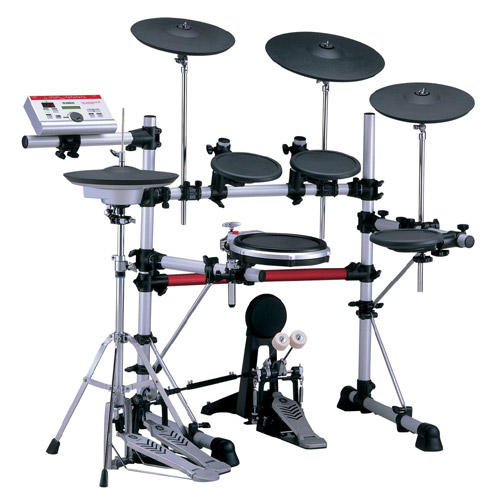
--- In DTXpress@yahoogroups.com, "peepeec2000" <pjcyr@e...> wrote:
> Hi There
>
> Just got a new DTXPRESS 3 set & love it. One small problem though.
I
> set up a kit that included tubular bells (MIDI voice 15 on ch 11)
and
> it worked great. I backed up everything using DTXCHANGE which I
> downloaded from Giles Hearn's website, thanks Giles. After backing
up
> however the kit now sounded with the wrong voice (some lame
keyboard).
> The settings for voice and channel have remained the same. I have
> even gone so far as to do a factory reset and reprogram the set
from
> scratch to see if that helped with he same results. During the
> reprogramming the voices for the MIDI numbers sound correctly but
as
> soon as I save the kit it reverts to the same keyboard voice. Have
I
> changed some default MIDI voice offset or program change or what?
>
> One other unrelated thing. I looked at the screen shot for the
> DTXPRESS Editor program as posted by "the_kit_doc". Is this
software
> availble within the group and compatible with the DTXPRESS 3 ?
Hi Pete,
Welcome to the group. The text editor was for the DTXpressII. Kin doc
took a poll to see what members would like him to do next, but we
haven't had any news since.
Some time ago a member was kind enough to compile a list of steps for
accessing and saving GM voices on the DTXPII. See if it helps you
with the III:
1. Select a drum kit and enter the Drum Kit Voice Edit Mode
2. Page down to Channel, Gate Time (1-7 page 18 in manual). On
second line of display change the "Ch=" to any number 1-16
except 10 (lets say Ch= 11). That's all you change here.
3. Now page down to Program Change, Bank Select (4-1 page 22 in
manual). On the top line you will see Kit PC Ch "x"=on.
Change the Ch to the same number you selected in 2 above and select =
on. In our example this would now read Ch 11=on. On the same page now
cursor over to the second line to PC= "x" Here's where you
select the GM keyboard voice 1-128 listed on page 42 of the manual.
For example, PC=48 would have the timpani sound you want, PC=105
would be a sitar and so on. You don't need to change any other
parameters on this page.
4. At this point striking the edited pad should sound the GM
voice that you want
but the note assigned to it may be too high
or low to give an adequate rendition of what the voice should sound
like
so
5. Page up to Note Number (1-6 page 18 in manual) and on the
second line that says Note#= "x" select a midi note # 0-127
(C-2 to G8) that makes the selected instrument voice sound
"realistic".
6. Repeat all of this for each pad you want to program. Goes
much faster if you're in the Learn mode
and then save your
kit if you so desire.
Ed