DTXpress III sp and CUbase
2007-03-26 by dtx4mi
Yahoo Groups archive
Index last updated: 2026-04-28 22:44 UTC
Thread
2007-03-26 by dtx4mi
HI.

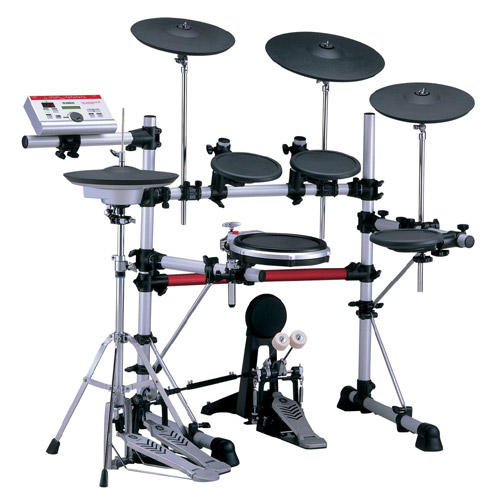
I have a DTXpress III special  and im trying to make it work with the
cubase and EX drummer.

Any of you guys have a Drum map working fine ?

I downloaded one on this page but it doesnt work in my case.

Please let me know.
2007-03-26 by grant
__
2007-03-26 by Damon, Rob
Grant,

I posted this over two years ago at the www.dtxperience.com site:


layering OF MULTIPLE VOICES PER TRIGGER PAD:
==========================================
To begin with, there are a lot of references to midi this and midi that in the manual. They go from midi notes to midi channels to midi control codes. The only thing common between them is the word "midi". You could spend the next year reading all the stuff out there on the web, describing what Midi is and how it is used, but for this lesson, you really can just throw it all out the window, because to do simple layering of voices, you don't really need to understand midi or read a 200 page manual.

If you are planning on recording via Midi or linking the module with other Midi devices then you will need to do more research.
If you want to learn about Midi, there are alot of online resources that are free, that you can just do a Google search on. (A search just now resulted in over 35,000,000 hits, on the word "MIDI", hope you are a fast reader and have alot of spare time to kill.)

But if you are just playing and recording via the audio out jacks, it really is not necessary to go very deep into it.

SOME BASICS FOR THE DTXTREME IIS MODULE:
======================================

"MIDI NOTES"

The Midi "notes" that are referenced in the manual are really just storage locations for information. You have storage locations 0-127, referred to as Midi NOTES 0 - 127 for which you can only use locations 13 through 94 for storing NOTES or voices. The other NOTES 0-13 and 95-127 are for control events and are not necessary for this lesson. You will see NOTES 13-94 paired with their Midi name: C#-1 through A#5 (i.e. 13 C# -1 or 94 A#5).

From the factory the module comes with voices already assigned to these NOTES 13-94, so when you select a preset kit, the voices assigned to each pad has already been assigned to one of these NOTES 13-94. Then in the trigger setup, the trigger is assigned to play one of these NOTES. So the snare main pad may be set to play NOTE 31 and the tom1 to play NOTE 64 as an example. Go to the voice menu and hit a pad or rim, you will see the midi number/name on the left hand side along with what instrument catagory and voice number that has been factory assigned to it. So midi NOTE 13C# -1 is assigned "Percs1/SurdoM1" and midi NOTE 14 D-1 is assigned "Percs1/Surdo."

"MIDI CHANNELS"

The Midi channels are dedicated pathways for communicating between devices. On this module there are Midi channels 1 through 16. If you want more detailed info on doing this, it is not in this lesson.

"MIDI CONTROL CODES"

The Midi control codes are basically just instructions that allow one Midi device to know what the heck the other Midi devices are doing or what they expect it to do. Again, if you want more detailed info on what the instructions are and how they work, it is not in this lesson.

"SAVING CHANGES"

Anytime you make a change to a setting, the little red LED will light up at the bottom right hand corner of the LED display. This means if you don't want to have to go back and redo everything, you need to save your changes to a User Kit. You cannot save changes to a factory preset kit. The current kit that you are working on, whether it is a factory kit or a User kit stored in memory or on a Media Card is being edited on in memory only....let me repeat...when you make a change to a trigger setting or a voice setting and you don't save it before moving on to another kit, all your changes will be lost. When you select a kit, all the trigger, effects and voice settings are copied into what is called the working memory buffer. The buffer is what is called "volatile", if the information is not saved somewhere before changing kits or turning the module off, it is lost. Think of it like computer memory or RAM, when the computer gets turned off, whatever was in memory that was not saved, will be lost. For this exercise, select one of your unused User kits, say User Kit U40 for playing around with, so that you don't mess up other saved kits.

STEP ONE - SETTING VOICES TO THE NOTES:

Like I said at the beginning you don't need to really understand Midi, so from here on out I am just going to call it "NOTE" numbers 13 through 94, without the name C# -1. It also makes it easier for me to type this out. So when I say NOTE 13, I mean Midi NOTE 13 C# -1.

The first thing to do is locate un-used NOTE numbers. When you press the [Voice] button and the voice menu comes up, you can scroll through the NOTE numbers. If you look at the header above the third knob it is labeled "Voice" with a number beside it. If there is an "*" asterick beside the number, then this NOTE is being used by one of the preset or user kits. You will need to locate a NOTE that does not have an "*" beside it. Write down at least six free NOTE numbers. In this lesson, I am going to use NOTES 13, 14, 15, 16, 17 and 18 and I am going to save it to User Kit no. 40.

Press the [Play] button and go to User Kit no. 40. Now when you press the [Store][Enter][Yes] buttons, you will be saving you settings to User Kit no. 40 and not accidentally over another kit.

Press the [Voice] button and rotate the left most dial until it is set to NOTE 13. Use the second dial to select the voice group of "AcSnr1". Use the third dial to select the voice "St.Smith1". This will be the voice assigned to the first of six layered voices for the snare pad. Now use the first dial and change to NOTE 14, then 15,16,17,18 so that you end up with the following assignments:

NOTE 13 = AcSnr1/St.Smith1
NOTE 14 = AcSnr1/St.Smith2
NOTE 15 = AcSnr1/St.Snare
NOTE 16 = AcSnr1/St.AmSn1
NOTE 17 = AcSnr1/St.AmSn2
NOTE 18 = AcSnr1/St.AmSn3

Don't worry about adjusting the other settings now, as you can always come back later. Now press the [Store][Enter][Yes] buttons to save this to User Kit no. 40.

STEP TWO - ASSIGNING THE NOTES TO THE TRIGGER INPUT:

Press the [Trigger] button to enter the trigger setup menu.
Tap on the snare drum pad or use the knob to select Input 1.
Use the arrow keys to scroll down to the [TrgMIDI1] menu and make sure the second item on the menu under MODE is set to "Stack".
Use the arrow keys to scroll down to the [TrgMIDI2] menu which will look similar to this (the note # maybe different, but don't worry):

[TrgMIDI1] Note Note # GateTime Channel
Input =1 1st 31 G0 0.3s 10

This is were you assign the NOTE to the layers. Note is set to 1st. In Stack mode you have options for setting up the 1st, 2nd, 3rd, 4th, 5th, 6th, mute, rim1, rim2.


***********************
SIDE NOTE: Ok, you are probably wondering what "mute" is doing in here, right? "Mute" is used when you have a cymbal pad with a rim switch. You can assign a NOTES to the main pad trigger (Notes 1st-6th) and to the rim1 and rim2 triggers. You can also assign a note to the "mute". Normally when you strike a cymbal first and then grab it second, the cymbal with a rim switch will "choke" the sound off for both the main pad and for the rim switch. The mute sound assignment is for when you hold (choke) the pad first and then strike it.

For those who know about this feature, keep reading, for those that don't, stop reading and go try it on your ride cymbal. Set Note to Mute and assign a Note #. When you hold the cymbal and then strike it the Note # you assigned will be played.

Now for those that knew about it already, did you also know that you could do it on the TP100/120 rims as well !!! When you setup a note for the Mute for the TP120S pad and press down on the rim1 FSR and strike the pad or the rim1 you will get the NOTE assigned to "mute" or if you hold down on rim2 FSR and strike the pad or the rim1, you will get the NOTE that is assigned to the Mute function. If you hold down on rim1 and striker rim2 then the normal sound assigned to rim2 will play, and not the sound assigned to "mute". Now it's you turn to go and try it.. : )
************************

So now with Note set to 1st change Note # to 13.
Now rotate the second knob to change "Note" to "2nd" , then "3rd", etc. as follows:

Note = 1st Note # = 13
Note = 2nd Note # = 14
Note = 3rd Note # = 15
Note = 4th Note # = 16
Note = 5th Note # = 17
Note = 6th Note # = 18

Now press the [Store][Enter][Yes] buttons to save this to User Kit no. 40.

So now the voices have been assigned to the NOTES 13-18 and the NOTES 13-18 has been assigned to the Input no. 1 (Snare).

Now press the [Play] button and you should have 6 voices assigned to the snare Input no. 1 that sounds awful because I just randomly selected the voices to be used.

The final step is going back in the voice menu and making adjustments to each of the 6 voices you end up using and then go into the Trigger menu and adjust the crossfading or other settings. So for example you could have Notes 1st/2nd/3rd trigger when you strike the pad lightly (ghost notes) and Notes 4th/5th/6th for harder strikes. Or notes 1st/2nd on light hits, notes 1st/3rd/4th on medium hits and notes 1st/5th/6th. The only thing that will limit you is time and imagination.

Good Luck.

OGD


________________________________
From: DTXpress@yahoogroups.com on behalf of grant
Sent: Mon 3/26/2007 3:56 PM
To: DTXpress@yahoogroups.com
Subject: [DTXpress] DTXtreme and layering


Does any one in the group have experience with the DT Xtreme module - the first kit with the maple toms ?
I had an Xpress kit,  and could layer two sounds ..easy , and allowed me to gte some great sounds -.but it seems that layering is not clear ( or the refernce to it ) in the Xtreme module -and I cant see how to do it
Q -  how do I layer two drum sounds in the Xtreme module ?
( In simple language )

Thanks
Grant
NZ


.

__,

______________________________________________________________________
The information transmitted herewith is sensitive information intended
only for use to the individual or entity to which it is addressed. If
the reader of this message is not the intended recipient, you are hereby notified that any review, retransmission, dissemination, distribution, copying or other use of, or taking of any action in reliance upon, this information is strictly prohibited. If you have received this communication in error, please contact the sender and delete the material from your computer.
______________________________________________________________________
This email has been scanned by the MessageLabs Email Security System.
For more information please visit http://www.messagelabs.com/email
______________________________________________________________________
2007-03-27 by grant
Grant,
I posted this over two years ago at the www.dtxperience.com site:
layering OF MULTIPLE VOICES PER TRIGGER PAD:
==========================================
To begin with, there are a lot of references to midi this and midi that in the manual. They go from midi notes to midi channels to midi control codes. The only thing common between them is the word "midi". You could spend the next year reading all the stuff out there on the web, describing what Midi is and how it is used, but for this lesson, you really can just throw it all out the window, because to do simple layering of voices, you don't really need to understand midi or read a 200 page manual.
If you are planning on recording via Midi or linking the module with other Midi devices then you will need to do more research.
If you want to learn about Midi, there are alot of online resources that are free, that you can just do a Google search on. (A search just now resulted in over 35,000,000 hits, on the word "MIDI", hope you are a fast reader and have alot of spare time to kill.)
But if you are just playing and recording via the audio out jacks, it really is not necessary to go very deep into it.
SOME BASICS FOR THE DTXTREME IIS MODULE:
======================================
"MIDI NOTES"
The Midi "notes" that are referenced in the manual are really just storage locations for information. You have storage locations 0-127, referred to as Midi NOTES 0 - 127 for which you can only use locations 13 through 94 for storing NOTES or voices. The other NOTES 0-13 and 95-127 are for control events and are not necessary for this lesson. You will see NOTES 13-94 paired with their Midi name: C#-1 through A#5 (i.e. 13 C# -1 or 94 A#5).
>From the factory the module comes with voices already assigned to these NOTES 13-94, so when you select a preset kit, the voices assigned to each pad has already been assigned to one of these NOTES 13-94. Then in the trigger setup, the trigger is assigned to play one of these NOTES. So the snare main pad may be set to play NOTE 31 and the tom1 to play NOTE 64 as an example. Go to the voice menu and hit a pad or rim, you will see the midi number/name on the left hand side along with what instrument catagory and voice number that has been factory assigned to it. So midi NOTE 13C# -1 is assigned "Percs1/SurdoM1" and midi NOTE 14 D-1 is assigned "Percs1/Surdo."
"MIDI CHANNELS"
The Midi channels are dedicated pathways for communicating between devices. On this module there are Midi channels 1 through 16. If you want more detailed info on doing this, it is not in this lesson.
"MIDI CONTROL CODES"
The Midi control codes are basically just instructions that allow one Midi device to know what the heck the other Midi devices are doing or what they expect it to do. Again, if you want more detailed info on what the instructions are and how they work, it is not in this lesson.
"SAVING CHANGES"
Anytime you make a change to a setting, the little red LED will light up at the bottom right hand corner of the LED display. This means if you don't want to have to go back and redo everything, you need to save your changes to a User Kit. You cannot save changes to a factory preset kit. The current kit that you are working on, whether it is a factory kit or a User kit stored in memory or on a Media Card is being edited on in memory only....let me repeat...when you make a change to a trigger setting or a voice setting and you don't save it before moving on to another kit, all your changes will be lost. When you select a kit, all the trigger, effects and voice settings are copied into what is called the working memory buffer. The buffer is what is called "volatile", if the information is not saved somewhere before changing kits or turning the module off, it is lost. Think of it like computer memory or RAM, when the computer gets turned off, whatever was in memory that was not saved, will be lost. For this exercise, select one of your unused User kits, say User Kit U40 for playing around with, so that you don't mess up other saved kits.
STEP ONE - SETTING VOICES TO THE NOTES:
Like I said at the beginning you don't need to really understand Midi, so from here on out I am just going to call it "NOTE" numbers 13 through 94, without the name C# -1. It also makes it easier for me to type this out. So when I say NOTE 13, I mean Midi NOTE 13 C# -1.
The first thing to do is locate un-used NOTE numbers. When you press the [Voice] button and the voice menu comes up, you can scroll through the NOTE numbers. If you look at the header above the third knob it is labeled "Voice" with a number beside it. If there is an "*" asterick beside the number, then this NOTE is being used by one of the preset or user kits. You will need to locate a NOTE that does not have an "*" beside it. Write down at least six free NOTE numbers. In this lesson, I am going to use NOTES 13, 14, 15, 16, 17 and 18 and I am going to save it to User Kit no. 40.
Press the [Play] button and go to User Kit no. 40. Now when you press the [Store][Enter][Yes] buttons, you will be saving you settings to User Kit no. 40 and not accidentally over another kit.
Press the [Voice] button and rotate the left most dial until it is set to NOTE 13. Use the second dial to select the voice group of "AcSnr1". Use the third dial to select the voice "St.Smith1". This will be the voice assigned to the first of six layered voices for the snare pad. Now use the first dial and change to NOTE 14, then 15,16,17,18 so that you end up with the following assignments:
NOTE 13 = AcSnr1/St.Smith1
NOTE 14 = AcSnr1/St.Smith2
NOTE 15 = AcSnr1/St.Snare
NOTE 16 = AcSnr1/St.AmSn1
NOTE 17 = AcSnr1/St.AmSn2
NOTE 18 = AcSnr1/St.AmSn3
Don't worry about adjusting the other settings now, as you can always come back later. Now press the [Store][Enter][Yes] buttons to save this to User Kit no. 40.
STEP TWO - ASSIGNING THE NOTES TO THE TRIGGER INPUT:
Press the [Trigger] button to enter the trigger setup menu.
Tap on the snare drum pad or use the knob to select Input 1.
Use the arrow keys to scroll down to the [TrgMIDI1] menu and make sure the second item on the menu under MODE is set to "Stack".
Use the arrow keys to scroll down to the [TrgMIDI2] menu which will look similar to this (the note # maybe different, but don't worry):
[TrgMIDI1] Note Note # GateTime Channel
Input =1 1st 31 G0 0.3s 10
This is were you assign the NOTE to the layers. Note is set to 1st. In Stack mode you have options for setting up the 1st, 2nd, 3rd, 4th, 5th, 6th, mute, rim1, rim2.
***********************
SIDE NOTE: Ok, you are probably wondering what "mute" is doing in here, right? "Mute" is used when you have a cymbal pad with a rim switch. You can assign a NOTES to the main pad trigger (Notes 1st-6th) and to the rim1 and rim2 triggers. You can also assign a note to the "mute". Normally when you strike a cymbal first and then grab it second, the cymbal with a rim switch will "choke" the sound off for both the main pad and for the rim switch. The mute sound assignment is for when you hold (choke) the pad first and then strike it.
For those who know about this feature, keep reading, for those that don't, stop reading and go try it on your ride cymbal. Set Note to Mute and assign a Note #. When you hold the cymbal and then strike it the Note # you assigned will be played.
Now for those that knew about it already, did you also know that you could do it on the TP100/120 rims as well !!! When you setup a note for the Mute for the TP120S pad and press down on the rim1 FSR and strike the pad or the rim1 you will get the NOTE assigned to "mute" or if you hold down on rim2 FSR and strike the pad or the rim1, you will get the NOTE that is assigned to the Mute function. If you hold down on rim1 and striker rim2 then the normal sound assigned to rim2 will play, and not the sound assigned to "mute". Now it's you turn to go and try it.. : )
************************
So now with Note set to 1st change Note # to 13.
Now rotate the second knob to change "Note" to "2nd" , then "3rd", etc. as follows:
Note = 1st Note # = 13
Note = 2nd Note # = 14
Note = 3rd Note # = 15
Note = 4th Note # = 16
Note = 5th Note # = 17
Note = 6th Note # = 18
Now press the [Store][Enter][Yes] buttons to save this to User Kit no. 40.
So now the voices have been assigned to the NOTES 13-18 and the NOTES 13-18 has been assigned to the Input no. 1 (Snare).
Now press the [Play] button and you should have 6 voices assigned to the snare Input no. 1 that sounds awful because I just randomly selected the voices to be used.
The final step is going back in the voice menu and making adjustments to each of the 6 voices you end up using and then go into the Trigger menu and adjust the crossfading or other settings. So for example you could have Notes 1st/2nd/3rd trigger when you strike the pad lightly (ghost notes) and Notes 4th/5th/6th for harder strikes. Or notes 1st/2nd on light hits, notes 1st/3rd/4th on medium hits and notes 1st/5th/6th. The only thing that will limit you is time and imagination.
Good Luck.
OGD
________________________________
From: DTXpress@yahoogroups.com on behalf of grant
Sent: Mon 3/26/2007 3:56 PM
To: DTXpress@yahoogroups.com
Subject: [DTXpress] DTXtreme and layering
Does any one in the group have experience with the DT Xtreme module - the first kit with the maple toms ?
I had an Xpress kit, and could layer two sounds ..easy , and allowed me to gte some great sounds -.but it seems that layering is not clear ( or the refernce to it ) in the Xtreme module -and I cant see how to do it
Q - how do I layer two drum sounds in the Xtreme module ?
( In simple language )
Thanks
Grant
NZ
.
__,
__________________________________________________________
The information transmitted herewith is sensitive information intended
only for use to the individual or entity to which it is addressed. If
the reader of this message is not the intended recipient, you are hereby notified that any review, retransmission, dissemination, distribution, copying or other use of, or taking of any action in reliance upon, this information is strictly prohibited. If you have received this communication in error, please contact the sender and delete the material from your computer.
__________________________________________________________
This email has been scanned by the MessageLabs Email Security System.
For more information please visit http://www.messagelabs.com/email
__________________________________________________________