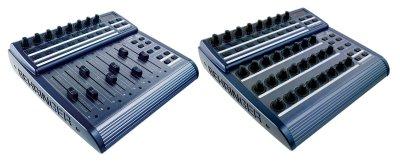
I found something that may be of importance : when I send midi data the ID of the BCR is switched (I think by BC manager?) from 2 to 1.....

Is that in compliance with your observation?


--- In bc2000@yahoogroups.com, "diddywahdiddy1" <550@...> wrote:
>
> Thanks, Mark, for your extensive explanation. It exolains some of the experiences I had (like the BCR losing its ID and then being unable to connect).
>
> What worries me is that the BCR seems to have no preset loaded at the moment. I remember that when I started the BCR for the first time I had 32 presets (visible on the BCR itself by the blinking leds on the rotators and such) but now everything is 'dark'. Looking at the input monitor I see no messages sent when I turn a rotator. Only when I choose 'single preset dump' then the sysex column in the monitor lights.
>
> BC manager now recognizes two connected BCR's but is unable to send the data to the 'malfunctioning' BCR. All the signs on the PC are green.... but the BCR has a stop sign burning.
>
>
>
>
> --- In bc2000@yahoogroups.com, "Mark v.d. Berg" <markwinvdb@> wrote:
> >
> > --- In bc2000@yahoogroups.com, "diddywahdiddy1" <550@> wrote:
> > > I have two BCR's which i use as control surfaces for Reaper. Occasionally one of the two looses connection with the computer, although I almost never shut them down and only put the PC to sleep and not completely shut down to avoid complications.
> >
> > If you maintain the same startup order, you should be able to switch everything off at the end of each session:
> >
> > 1. Switch on the PC.
> > 2. Switch on BCR 1 and wait until its green USB LED lights up.
> > 3. Switch on BCR 2, similarly.
> > 4. Start BC Manager and/or Reaper.
> > 5. Do what you want to do in BC Manager/Reaper.
> > 6. Terminate BC Manager/Reaper.
> > 7. Switch off BCR 2.
> > 8. Switch off BCR 1.
> > 9. Switch off the PC.
> > (Actually the order of 7-9 is irrelevant, perhaps unless you want to switch a BCR on later in the same session.)
> >
> > Additionally, you should make sure that the Device IDs (and probabl;y the Operating Modes) of the BCRs never change. See below!
> >
> > > Anyway, now it is that moment again. After a LOT of trial and error I got the two recognized properly in BC manager.
> > >
> > > The problem is that one of the two refuses to accept the data that I want to send. I use exactly the same syx file but on accepts it happily and with the other I first get a warning "Do your eally want to send this global setup to your B-control?". When I click YES I see that the P-1 indicator on the B-control flashes for a moment and then the transmission stops.
> >
> > Each BCR has a Device ID (1-16), which can be set in Global Setup editing mode (EDIT + STORE => "EG").
> > Whenever a BCR receives a BCL message (e.g. from BC Manager), the BCR checks whether the Device ID "fingerprint" included in the BCL message is identical to its own internal Device ID: if there is a match, the BCR accepts the message, otherwise the BCR ignores the message.
> > For all BCL messages, BC Manager uses the Device ID specified in the "MIDI options" dialog box ("B-Controls" window -> MIDI -> Options).
> >
> > However, it is possible to send a BCL message to the BCR specifying a new Device ID: the BCR then changes its internal Device ID to the new value. (So this particular BCL message actually contains TWO Device IDs: the OLD one (still being used as the "fingerprint" of the BCL message itself) and the NEW one (as data).)
> > From that moment on, the BCR no longer accepts BCL messages using the old Device ID as a fingerprint, but only BCL messages using the new Device ID.
> >
> > BC Manager sends such a Device ID-changing BCL message whenever you send a Global Setup area to the BCR, either via the "B-Controls" window -> MIDI -> "Send all data" or via the "B-Controls: Global setups" window -> MIDI -> Send.
> > However, after this, BC Manager keeps using the Device ID specified in the "MIDI options" dialog box for the rest of the BCL sequence (preset data etc.). So if the Device ID in the Global Setup area differs from that value, the BCR ignores all further messages - which is probably what happened in your case.
> > So you should not send Global Setups to your BCRs - or at least not the same Global Setup to both your BCRs: by definition this will set the Device IDs of both BCRs to the same value. It's much safer to only send individual presets or ranges of presets.
> >
> > Meanwhile, I'll think about improving BC Manager's behavior concerning the sending of Device IDs: maybe it's better to skip the Device ID when sending a Global Setup to the BCR; or BC Manager could switch to the new Device ID immediately. Hmm...
> >
> > I've never thought about this problem in this detail before, because most people keep the Device IDs of all their BCFs/BCRs at 1 (I think e.g. Propellerhead Reason even demands this), so then sending Device ID 1 (as part of a Global Setup area) doesn't actually change anything.
> >
> > A complicating consideration is that certain Behringer USB device drivers for the BCF/BCR include the BCF/BCR's internal Device ID in the MIDI I/O port names for the BCF/BCR; so if you then change a BCF/BCR's Device ID, the names of the MIDI I/O ports will be different the next time you start the BCF/BCR.
> >
> > Hope this helps,
> > Mark.
> >
>Message
Re: Send midi data problem
2011-11-15 by diddywahdiddy1
Attachments
- No local attachments were found for this message.