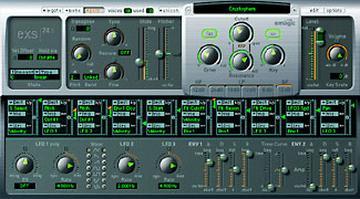
Here's how I insert sample loops -- starting in the instrument editor and
calling up Logic's sample editor. Hope this is of some use to anyone
starting out building instruments for the EXS24.

Click on the E button on the "Loop" line in the Zone for the sample you
wish to loop -- this will open the sample in the sample editor.
Drag  a rough loop zone with the file only zoomed to the point where you
can see the set of individual cycles that will form the loop.
Hit <Ctrl +> a few times to zoom right up till individual samples are visible.
Hold down the <Shift> key and you can drag the edges of the selection with
the mouse
Choose a zero crossing at one end of the loop and then using the arrow keys
( --> and <--) navigate to the ends of the selection to position the Loop
start and end points precisely.

There is still (LAWP 4.8.1) no key command for "selection --> loop" so you
still have to use the mouse to open the edit menu and choose this option.
You are finished in the Sample Editor.

Back in the Instrument Editor:
If the loop has a glitch despite sample accurate placement of the start and
finish points try the <Auto Crossfade> feature. A few milliseconds will
often do the trick -- perhaps more for lower frequency samples. ]
Message
Tip: Looping Samples for EXS24
2002-03-06 by Murray McDowall
Attachments
- No local attachments were found for this message.